Twenty-two short lessons that take you from importing your first clip to exporting a finished, edited video. Structured logically from the basics up, with nothing assumed.
Built for absolute beginners - nothing is assumed
Works with any version of Premiere Pro, including the free trial
Just over two hours - you could finish it this weekend
Watch free for a month with my referral link
Free for a month with my referral link, then a Skillshare membership.
Download the free Premiere Pro trial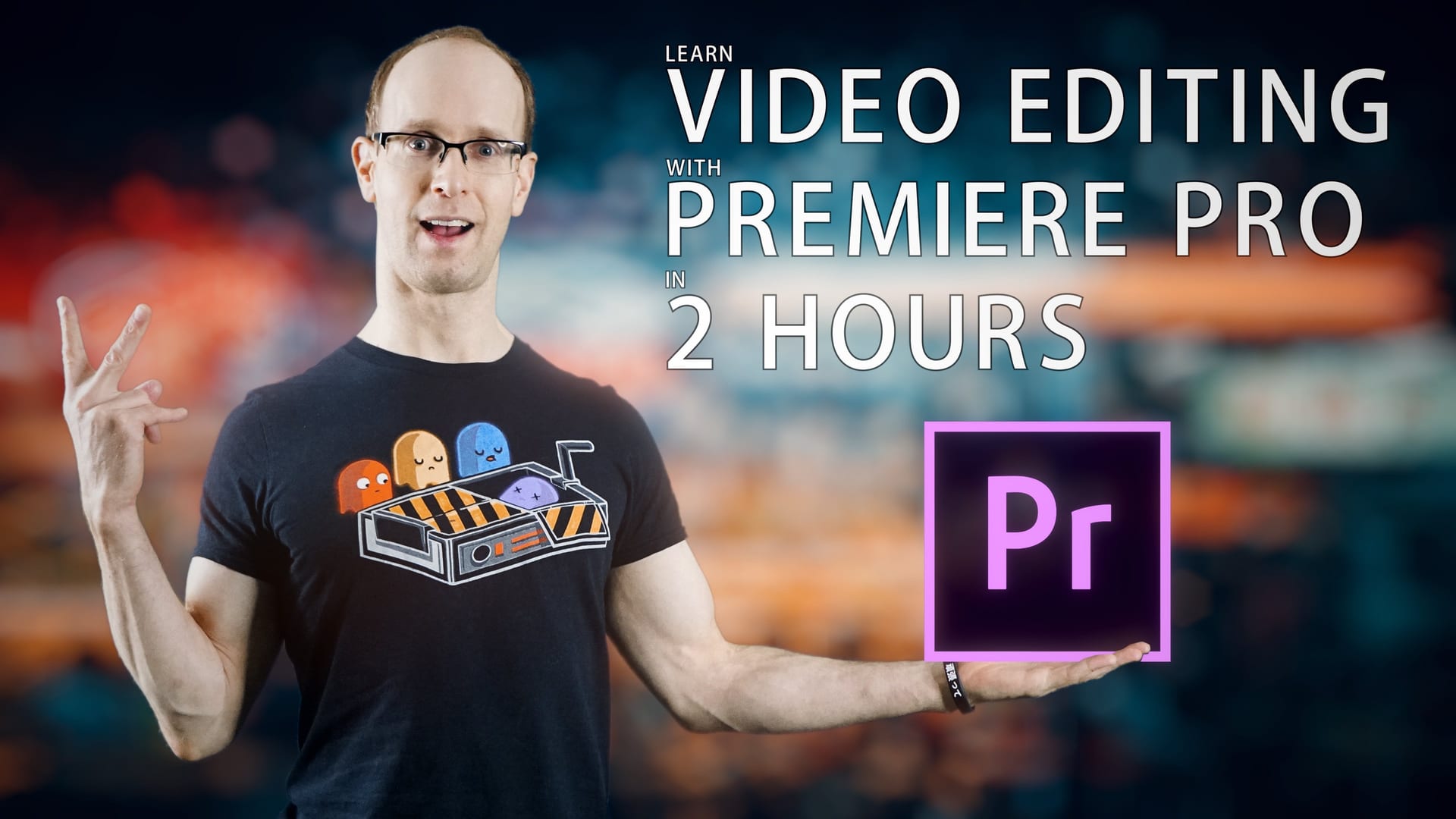
Premiere Pro is an industry-leading video editing application. You can use it for anything from home videos to professional-grade films, with powerful tools for cutting footage, building transitions and effects, adding titles and animation, and mixing audio.
22 lessons over 2h 8m, ordered from the very basics upwards.
What Premiere Pro is, creating your first project, a tour of the interface, and the handful of preferences worth changing before you start. Five short lessons to clear the runway.
Getting your media into the project, creating a sequence that matches your footage, and laying clips onto the timeline. The setup that quietly causes most beginner problems when it goes wrong.
Starting to actually cut, working with the Source Monitor to choose what goes in, and the Program Monitor to watch it back. The basic loop of editing, learned once.
The longest lesson in the class, and rightly so: ripple, roll, slip, slide, rate stretch and the rest. These are the tools you will use for the rest of your editing life.
Getting a finished file out that you can actually upload or send to someone. Deliberately early in the class, so you can complete a whole video before learning the polish.
Video transitions, video effects, and audio transitions and effects. What each one is for, and how to apply them without making your edit look like a 1998 wedding video.
Stacking video and audio tracks, animating with keyframes, and adding text and titles. This is where an edit stops being a sequence of clips and starts looking designed.
Working with audio - the half of video that most beginners neglect - then a class project: cut your own edit with everything you have just learned.
Complete beginners who have never opened Premiere Pro
YouTubers and content creators editing their own videos
Film makers who want a proper grounding in the whole workflow
Editors moving to Premiere Pro from another application
22 lessons, 2h 8m, from a blank project to an exported video
Works with any version of Premiere Pro - the free trial is enough
Course materials to download, so you can edit the same footage I do
A class project and a Skillshare certificate when you finish
The course is the structured path, but it is not the only thing here. Surfaced Studio publishes free Premiere Pro tutorials covering editing, colour correction, speed ramps, automatic subtitles and the workflow fixes that save an afternoon. Start with any of these, and take the course when you want the whole thing in order.
The starting point. Project setup, importing, cutting, transitions, titles and your first export.
Read the tutorial →
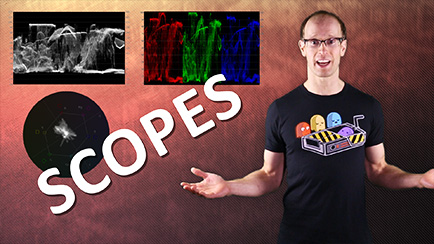
Waveform, RGB Parade and Vectorscope - reading the scopes instead of guessing at your grade.
Read the tutorial →
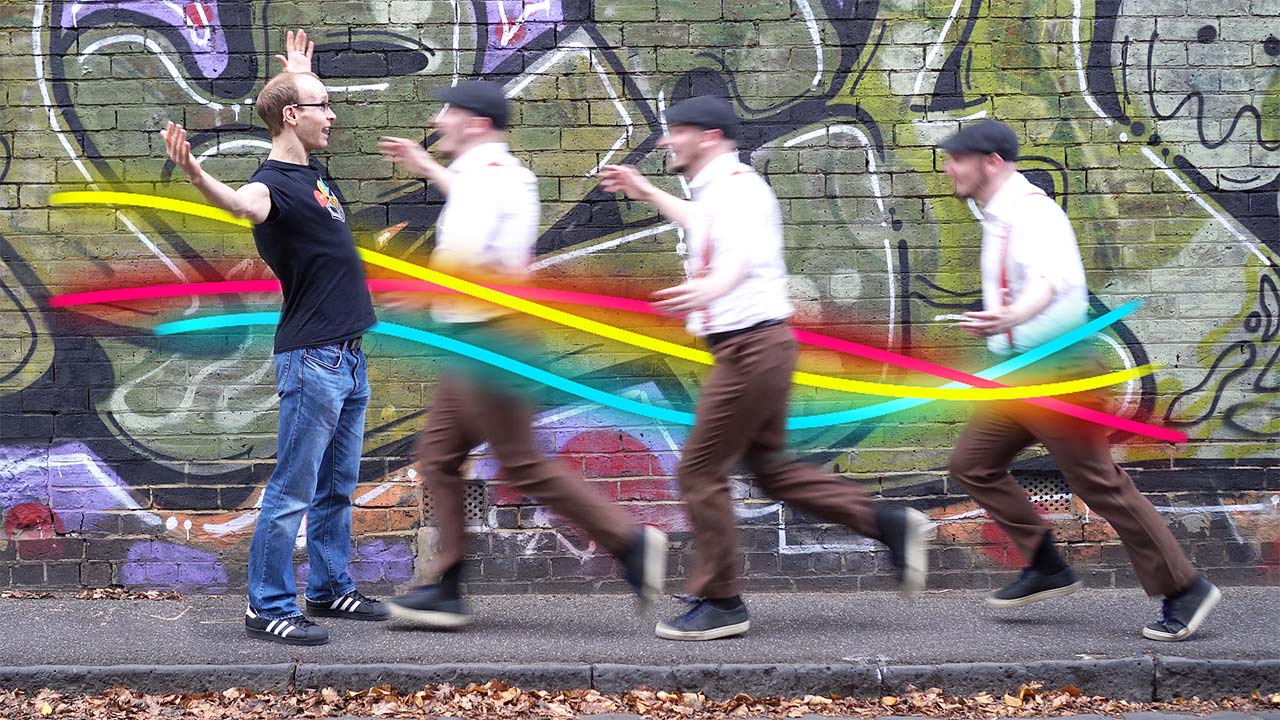
Time remapping done properly, including how to get smooth slow motion out of ordinary footage.
Read the tutorial →
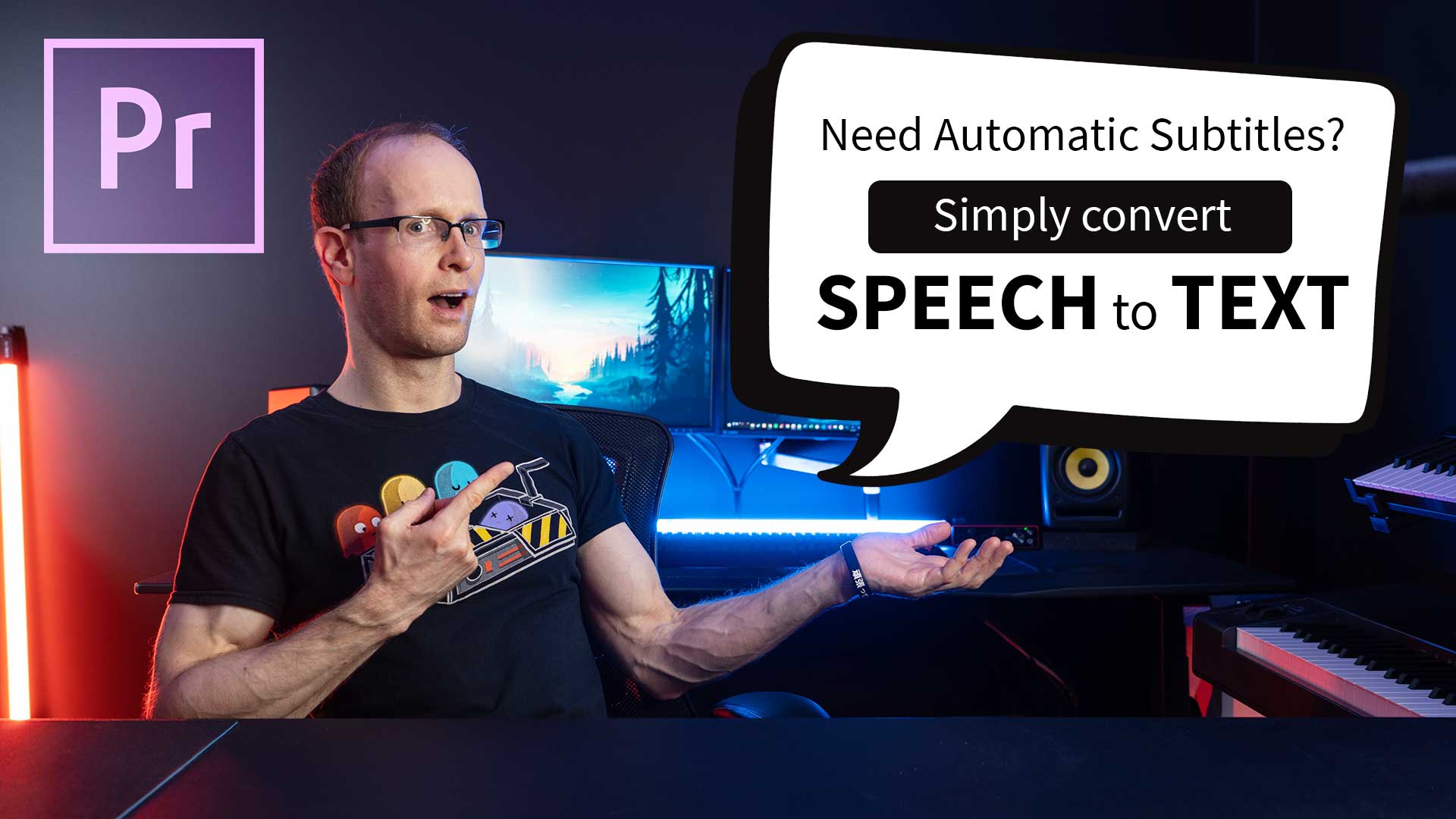
Premiere's Speech-to-Text feature, from transcript to styled, burned-in captions.
Read the tutorial →
Four reasons Premiere Pro plays back badly, and what to actually change for each one.
Read the tutorial →
The ten shortcuts that take the most clicking out of an average edit.
Read the tutorial →
9 free tutorials, and counting. No sign-up, no paywall.
Yes, and I would encourage it. Surfaced Studio publishes free Premiere Pro tutorials at surfacedstudio.com/tutorials/premiere-pro - editing, colour correction, speed ramps, subtitles and performance fixes. Work through a few, see whether the way I explain things suits you, and take the class if you want it all in one ordered path. My referral link also gives you a free month of Skillshare, so the class itself can cost you nothing.
No. The course is written for absolute beginners and does not assume you have used Premiere Pro before. Everything is covered step by step from the very basics.
You need a copy of Adobe Premiere Pro to follow along, but not a paid one to start - Adobe's free trial is enough. The course works with any recent version.
Download the free Premiere Pro trial →Skillshare is a subscription learning platform - one membership gives you this class and thousands of others, rather than buying courses one at a time. My referral link gives you a free month, so you can watch the whole course without paying anything. After that it renews as a paid membership until you cancel, and you can cancel during the free month if you would rather not continue.
You lose access to the class, as with any subscription - this is the one real difference from buying a course outright. The class runs just over two hours, so a free month is more than enough time to finish it, and a lot of the same ground is covered free on surfacedstudio.com and my YouTube channel.
Yes. The course materials are available to download so you can edit the same footage I do, and the class sets a project at the end so you have something to actually cut.
Some of it, yes - and I am upfront about that. The class reorganises my best material into a single ordered path, adds the course footage and a project, and comes with a certificate at the end. If you would rather not subscribe to anything, the free tutorials above are genuinely free.
Ask in the class discussion on Skillshare. I answer student questions there, and I would rather you finish the course happy than quietly give up on it.
22 lessons, 2h 8m, and the course files - free for a month with my referral link.
Free for a month with my referral link, then a Skillshare membership.
